
 Remote control for your computers and the people you help.
Reach your own computers, and help family, friends or clients wherever they are. The person you help needs only the free app and one click on Allow.
Free for the person you helpPro from €1 a monthEnd-to-end encryptedNo account for them
- macOSAvailable
- WindowsAvailable
- LinuxIn testing
- iPadBeta
Free to get help. Pro to give it.
Only the person who connects needs Pro. The person you help downloads the free app, reads you a number and clicks Allow.
Free
€0, for good
For the person receiving help
- Receive help, as often and as long as you need
- No account, no card, no email address
- Your helper's Pro covers you: you never pay
- Nothing happens until you click Allow
Pro
from €1 a month
€12 a year, paid once, no automatic renewal
- Connect to anyone by their 9-digit number
- Unlimited sessions and any number of computers, yours or theirs
- Private and commercial use
- 14 days of full control to try
- 30-day money-back guarantee
What you can do
Remote control
See their screen and work with your own mouse and keyboard, over the internet or on your own network. The Mac app adds every monitor, sessions in tabs and reconnecting by itself.
Charge for your time
Set a rate per hour, minute or session. They see it before they click Allow and pay you directly. We take no commission.
Free for the person you help
They download WS.Remote, read you their number and click Allow. No account, no card and nothing to pay, at home or at work.
Your own computers
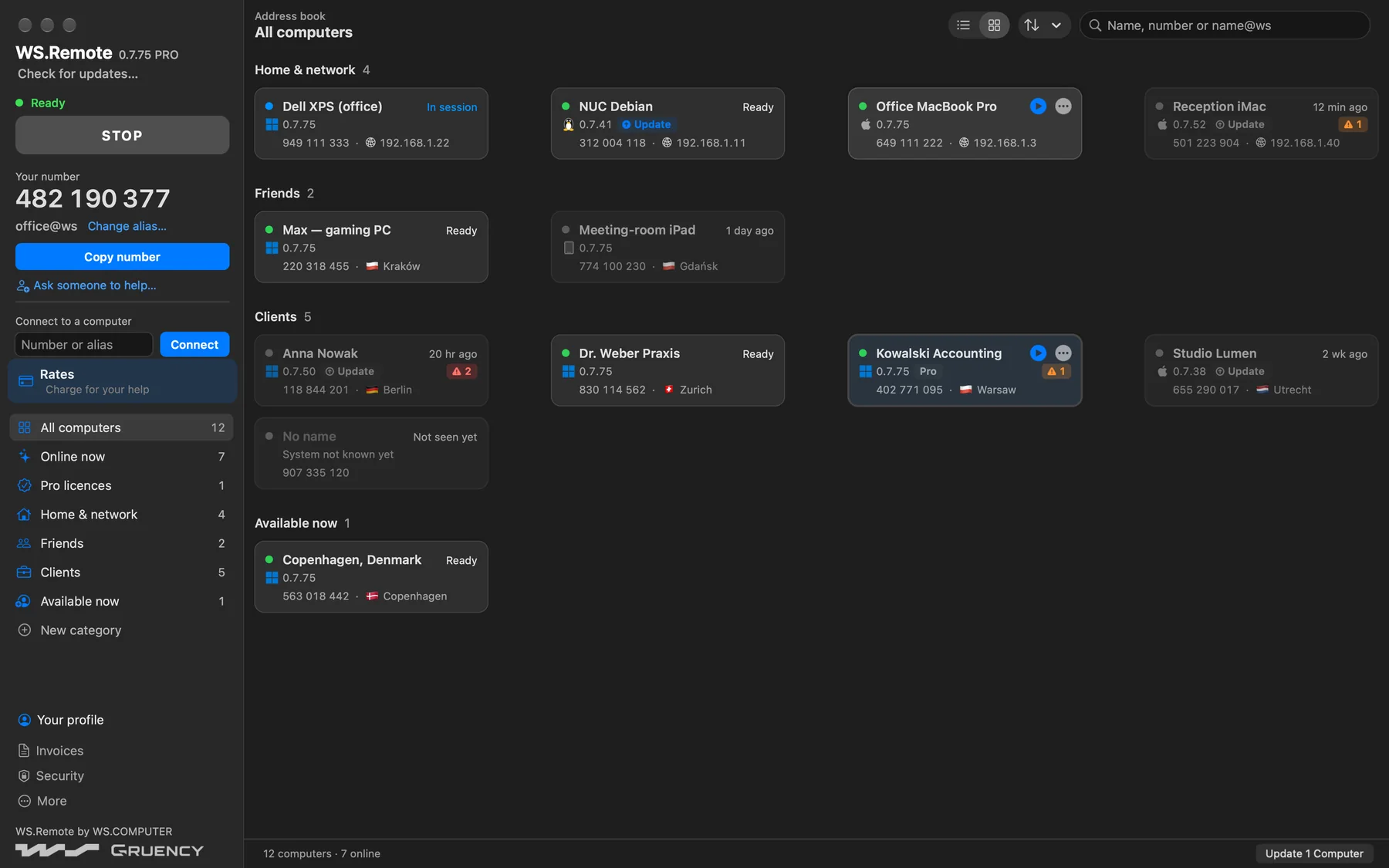
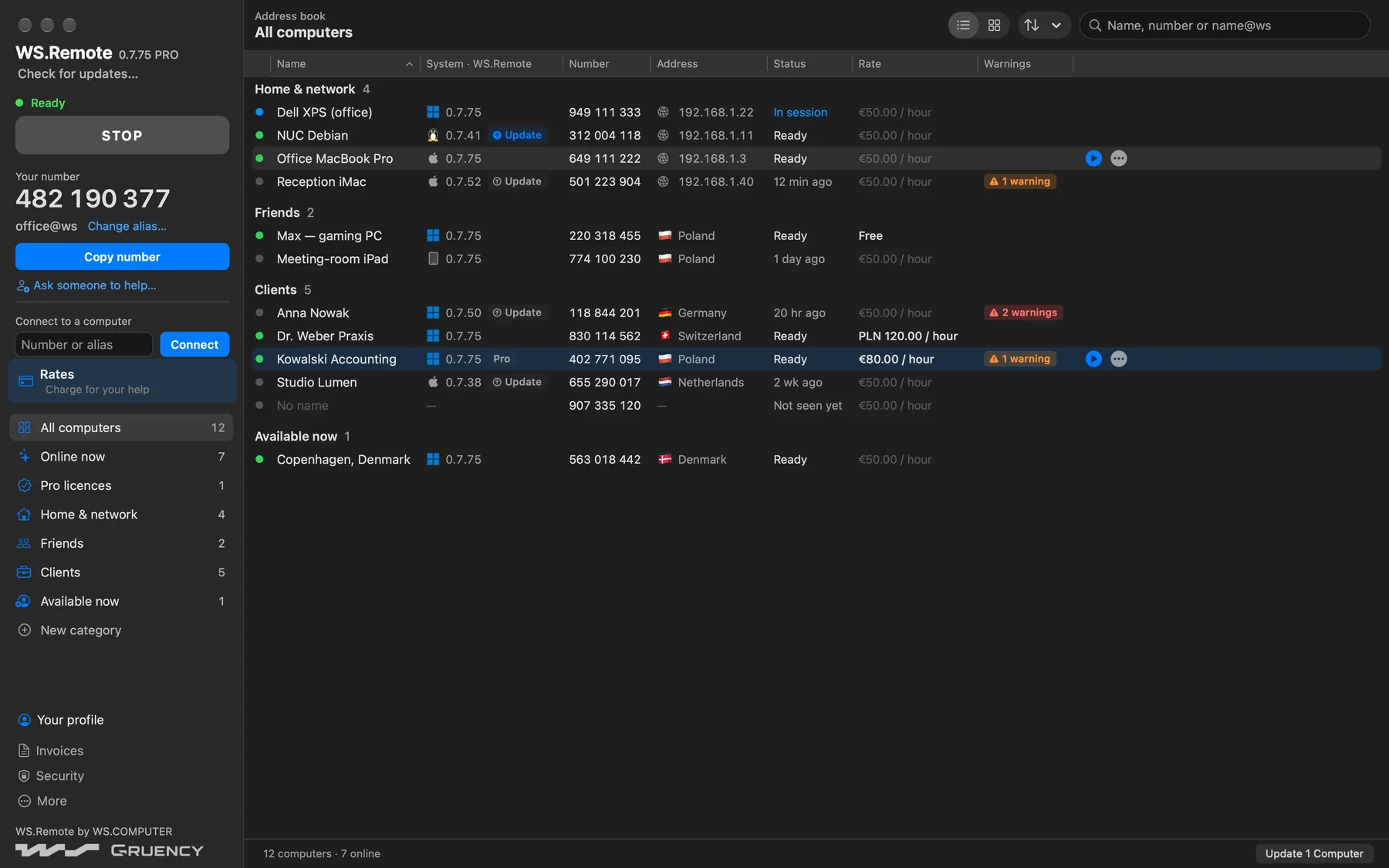
Reach your computers at home, at the office or on the road, from an address book that shows which are online.
Send files both ways
Drag files of any size onto their screen, or open the file manager to browse and copy files and folders in both directions.
Hear their computer
What plays on their computer plays on yours, in stereo, when you help from the Mac or iPad app.
Chat, calls and clipboard
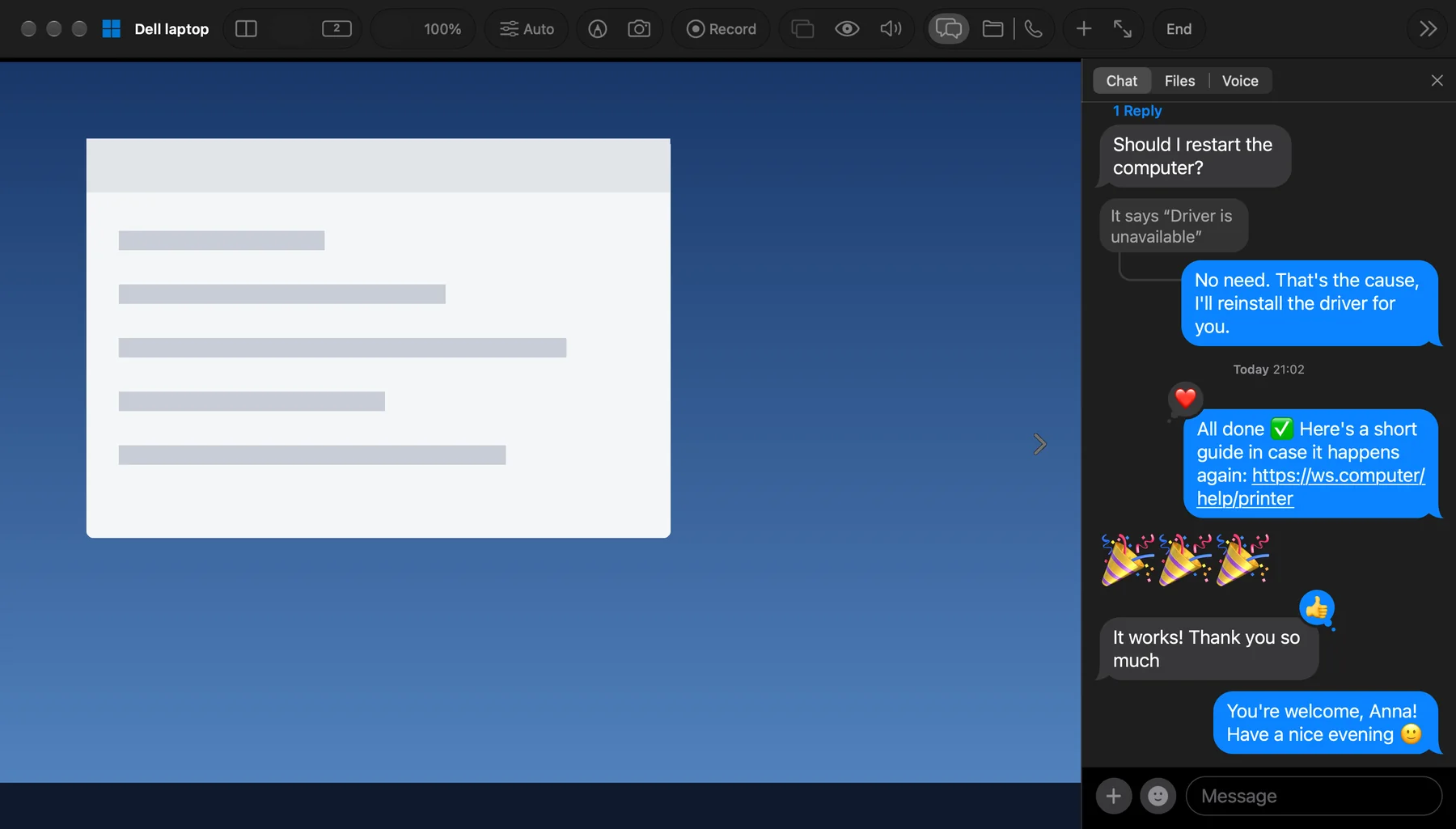
Type to each other, or start a voice call from the chat, with no phone and no extra app. Copy text or whole files on one computer and paste them on the other.
Administrator rights
On Windows computers, install and remove programs and work in Task Manager once the person you help allows it.
Network devices in the same list
A QNAP, Synology, ASUSTOR, TrueNAS or Unraid NAS, a UniFi or MikroTik router or a camera recorder sits in the same list and opens its own web panel in one click, on Mac, Windows and Linux.
The Pro app
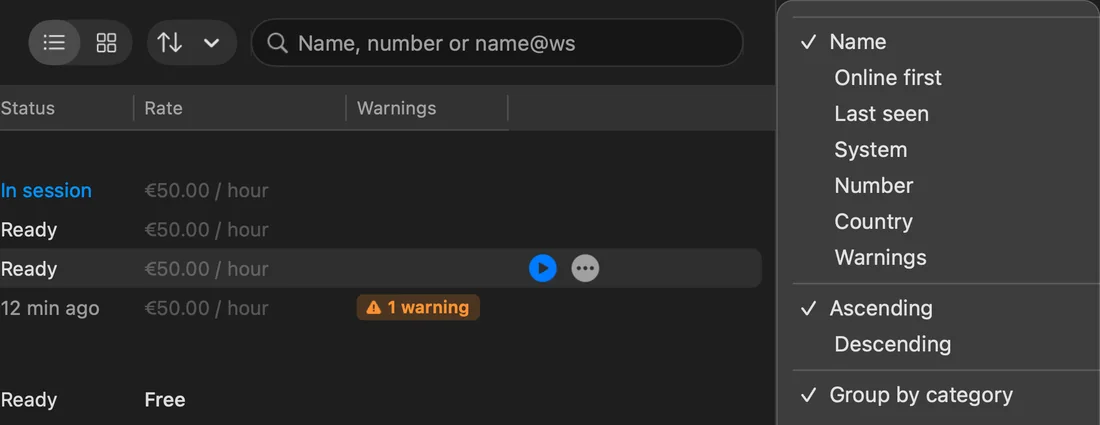
Every computer you look after in one address book, sorted the way you work. All screens use sample data.
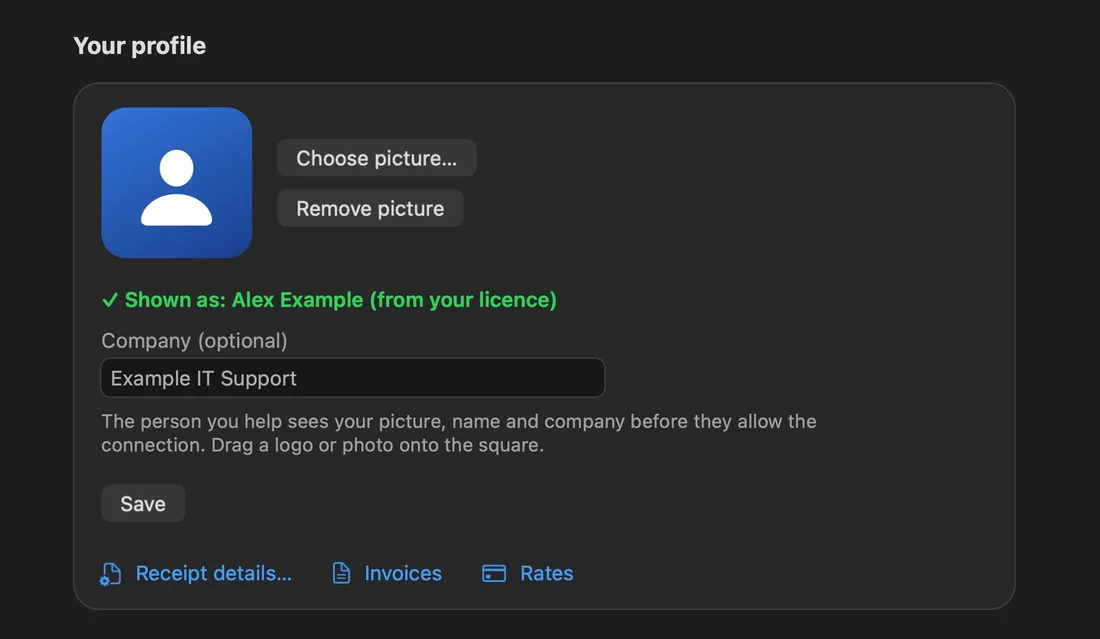
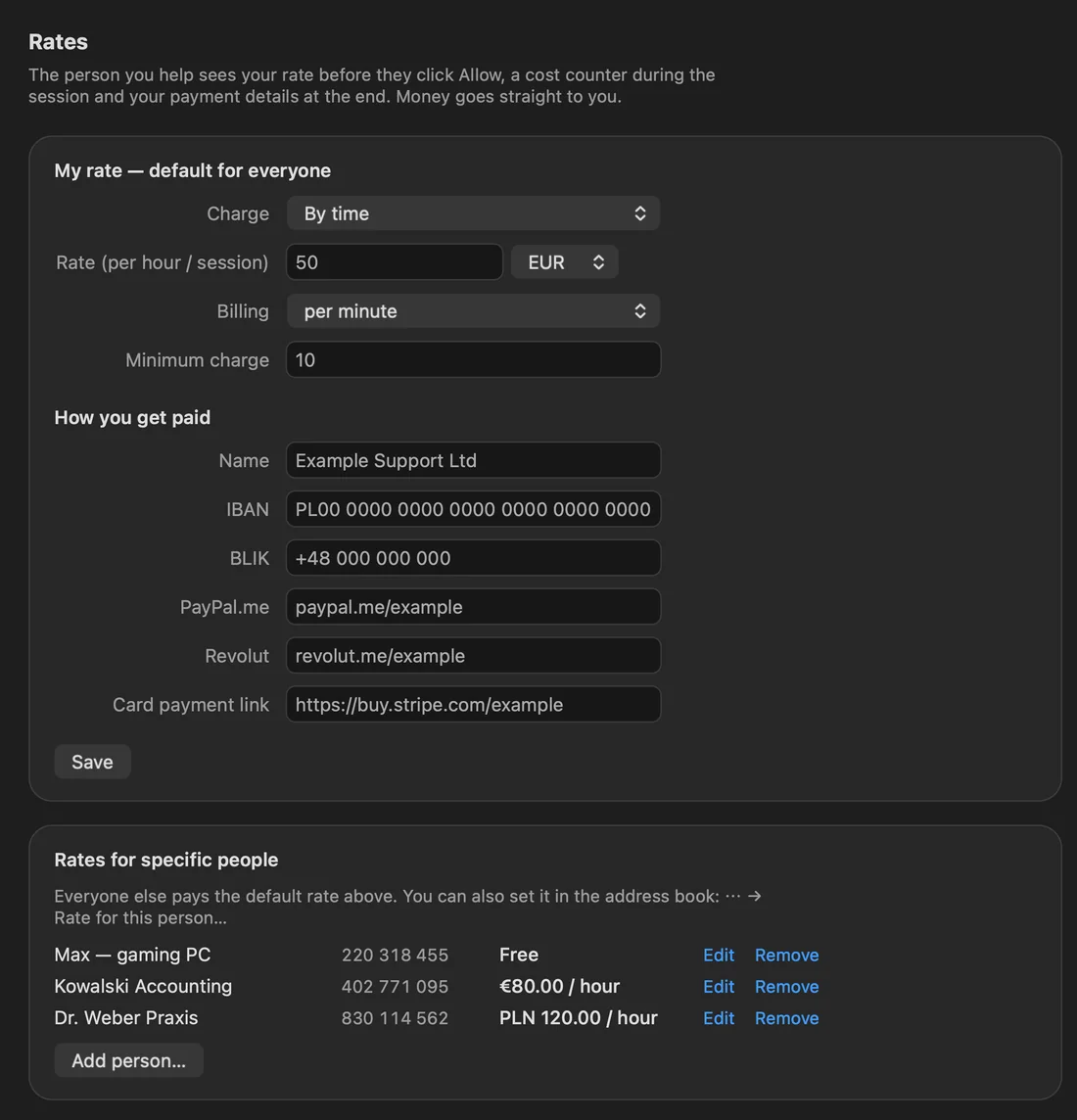
Charge for your time
Set a default rate, or a different one for a single person: free, per hour or a fixed price per session, billed to the minute with a minimum charge. They see it before they click Allow, watch a counter during the session and get your payment details at the end. The money goes straight to you.
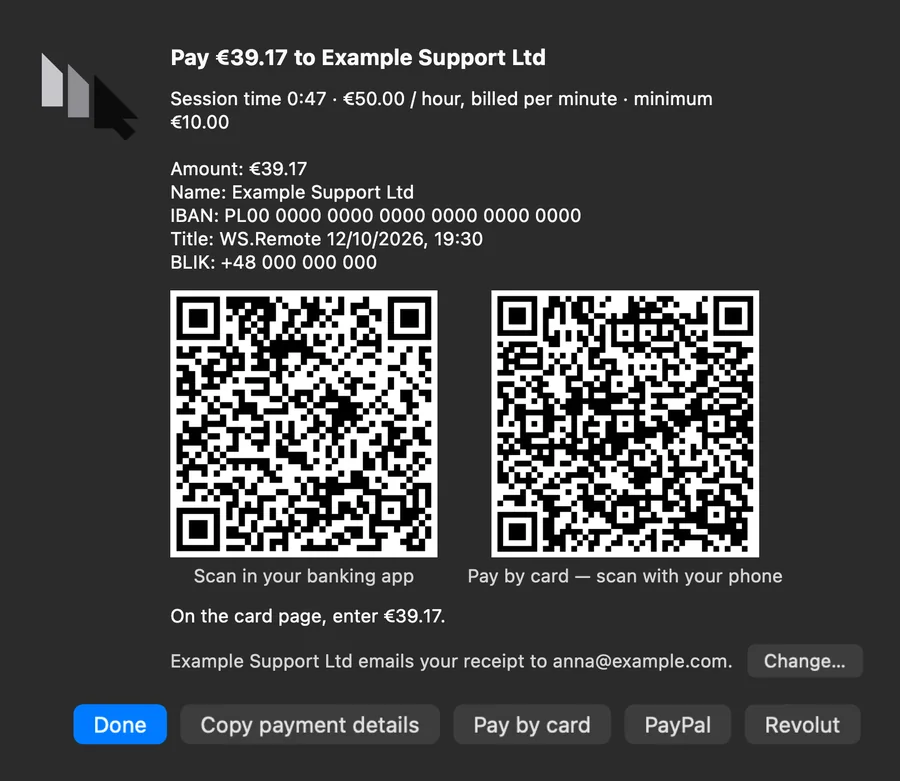
Receipts and invoices in your name, and a list of unpaid sessions, are in testing. You issue the tax invoice yourself; WS.Remote never touches the money.
Speed
WS.Remote uses proprietary WS.COMPUTER codec technology, built for one job: a screen that follows your hand. Dragging a window, typing and scrolling feel local, and text stays sharp the moment you stop.
Ultra-fast
Direct between the two computers whenever the network allows, with hardware video encoding and decoding where the machine has it.
Responsive
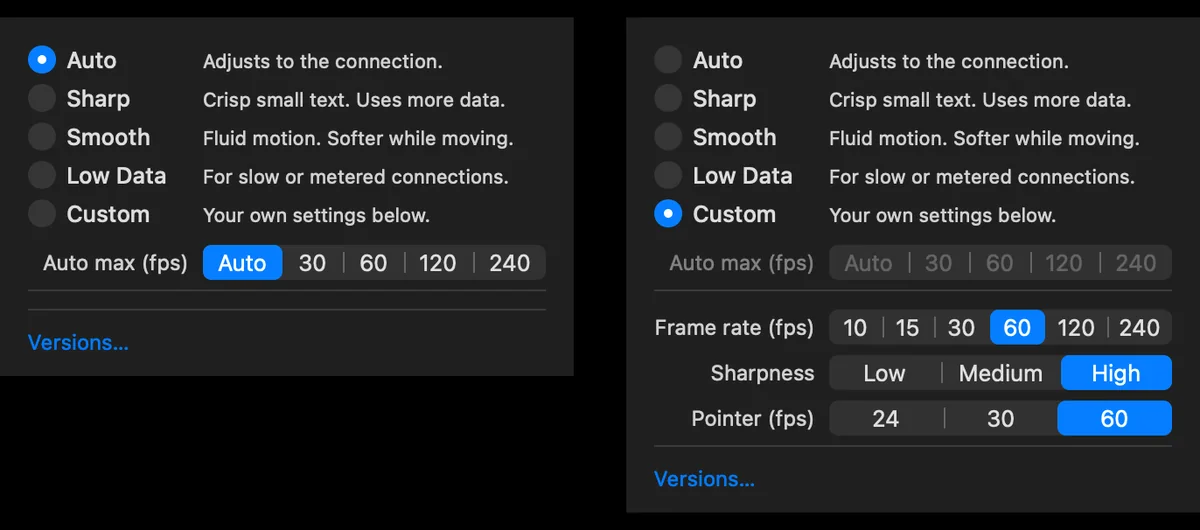
Smooth drags, no rubber-band lag. It adapts to the link, so a slow Wi-Fi gives a lower resolution, not a frozen screen.
Every direction
Mac to Mac, Mac to Windows, Windows to Mac and Windows to Windows, the same engine on each. Linux is in testing.
Private by design
Your screen goes only to the person helping you. The picture travels between the two computers, encrypted on the way.
End-to-end encrypted
AES-256-GCM with fresh keys for every session. Both sides see the same safety code, so you can check that nobody slipped in between.
Allow, every time
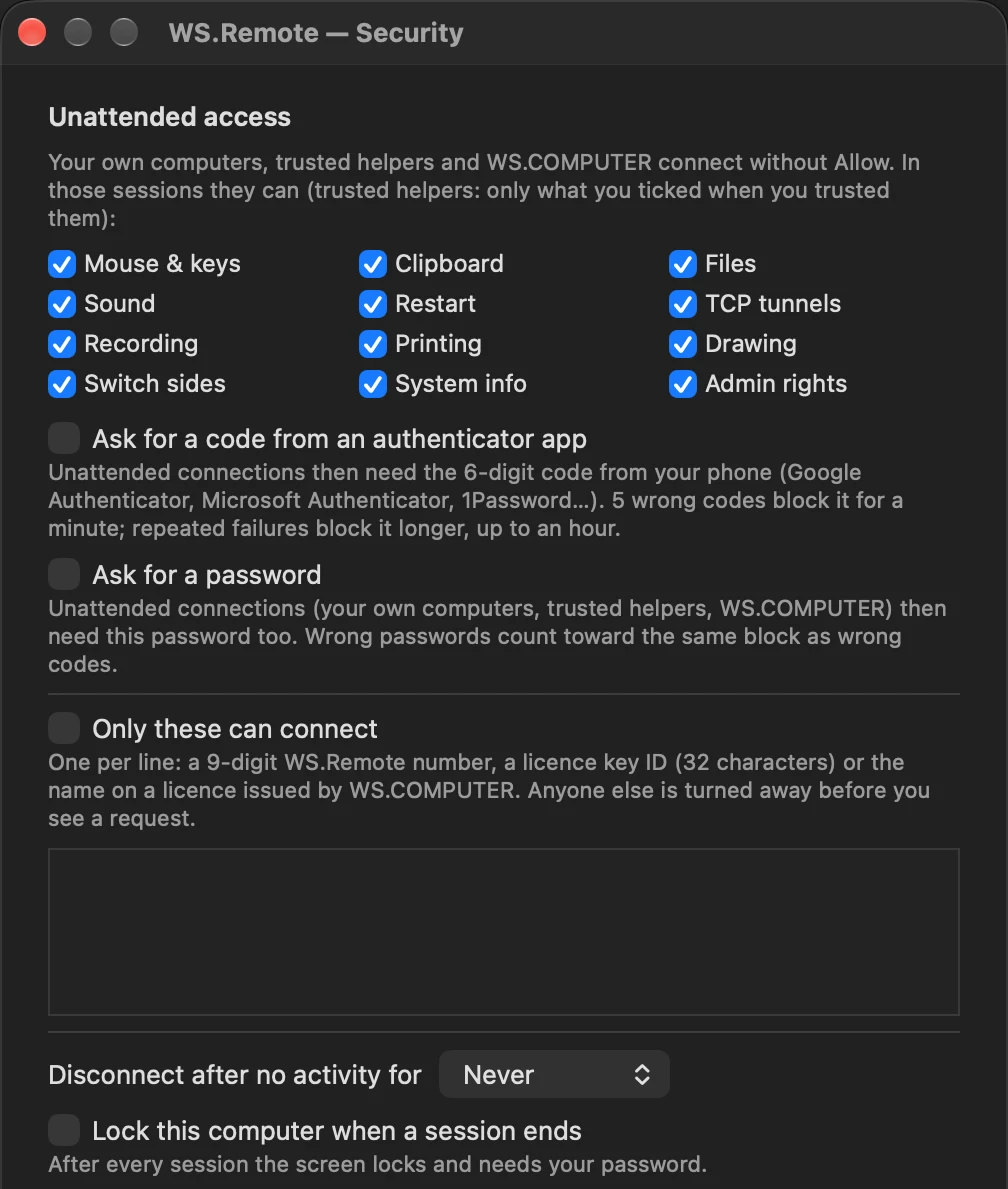
Every session needs a click on Allow at that computer. Either side can end it at once.
Direct first
Peer-to-peer whenever the network allows. The relay steps in only when it has to, and still carries encrypted data only.
Nothing recorded
Sessions are never recorded or stored. No ads and no tracking; crash reports only when someone clicks Send.
How it works
- 1
Open the file
The person who needs help downloads WS.Remote and opens it. A window shows their support number.
- 2
Read the number
They tell you the 9 digits on the phone or in a chat. Nothing else to set up.
- 3
Allow
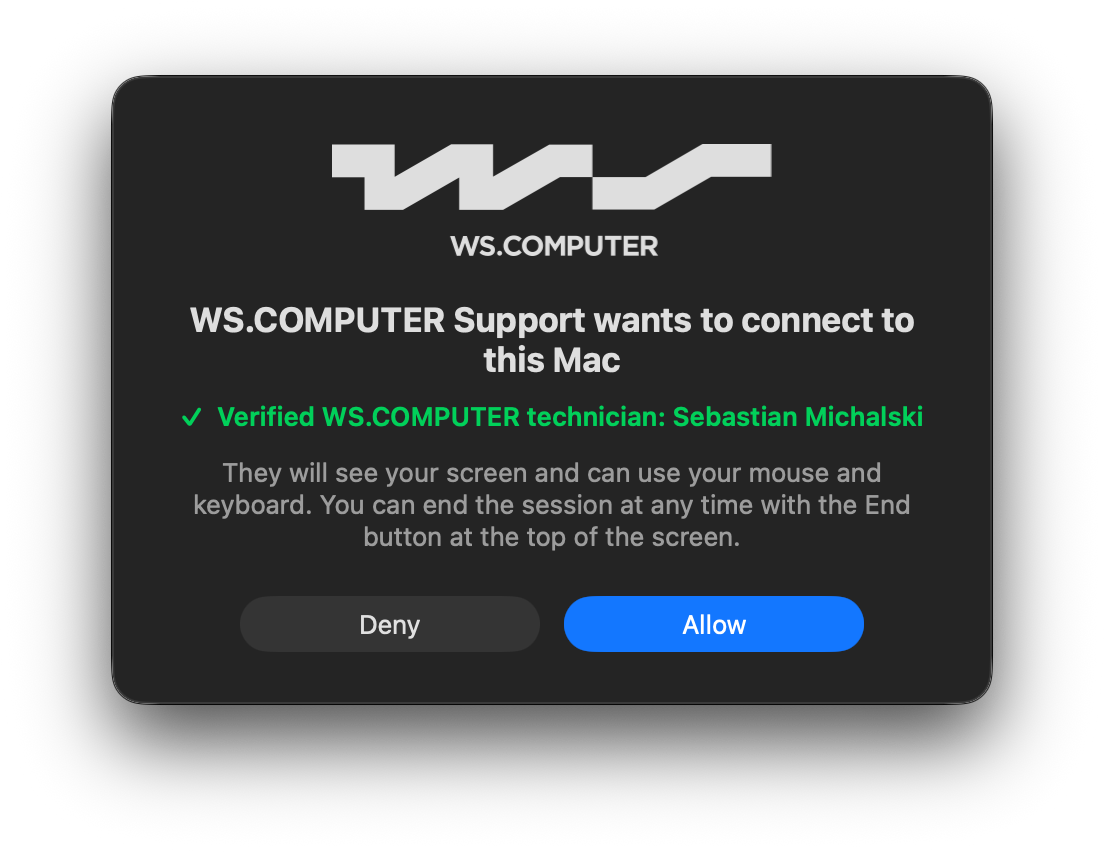
A window asks them to allow the connection. They see who is connecting and click Allow. A red bar at the top of their screen shows the session is on, with an End button.


Start with the free app, add Pro when you give help
Download WS.Remote now. Pro is €12 a year, paid once, with a 30-day money-back guarantee.
Mac: install without the Apple warning
curl -fsSL https://gruency.com/remote.sh | sh- Click Copy.
- Open Terminal: press ⌘ Space, type Terminal, press Return.
- Paste with ⌘ V and press Return. WS.Remote installs and opens by itself.
The files are not yet signed with paid Microsoft and Apple certificates, so on the first start the system may warn you. Windows: click More info, then Run anyway. Mac: open System Settings → Privacy & Security and click Open Anyway. You see this once.
Manual
If you need help
- Open the link you were given (gruency.com/remote for Windows, gruency.com/remote-mac for Mac) and open the file. On Windows, if a blue window appears, click More info, then Run anyway. On a Mac, drag WS.Remote to Applications and allow Screen Recording and Accessibility when asked.
- A window shows “Your support number”. Read the 9 digits to the person helping you, or click Copy number and paste it into the chat.
- When they connect, check the name in the window and click Allow.
- To finish, click End in the red bar at the top of the screen. Then close the window.
If you help (WS.COMPUTER Support and partners)
Choose Connect to another computer, type the number and wait for the other person to click Allow. Your mouse and keyboard work in their window; Cmd and Ctrl are swapped between Mac and Windows, so shortcuts like copy and paste work as you are used to. The window title shows whether the connection is direct.
Questions
Is it free?
Receiving help is free, for good: no account, no card, no time limit. Giving help and reaching your own computers needs Pro, from €1 a month (€12 a year, paid once).
Does the person I help need Pro?
No. They only need the free app. If their helper has Pro, they pay nothing.
Can someone connect without my knowledge?
No. Every connection needs your Allow, and a bar always shows who is connected, with an End button.
Why does the system show a warning on first start?
The files are not yet signed with paid Microsoft and Apple certificates. The warning appears only on the first start; the install command for Mac avoids it.
Which systems does it work on?
Mac (macOS 14 or later, Apple silicon and Intel) and Windows 10 and 11. Linux is in testing and an iPad app is in beta. A Mac can help a PC and the other way round.
Is it encrypted?
Yes, end to end with AES-256-GCM and fresh keys for every session.
WS.Remote · WS Apps by WS.COMPUTER · by GRUENCY · Terms of use